Step 2 : Create you new product
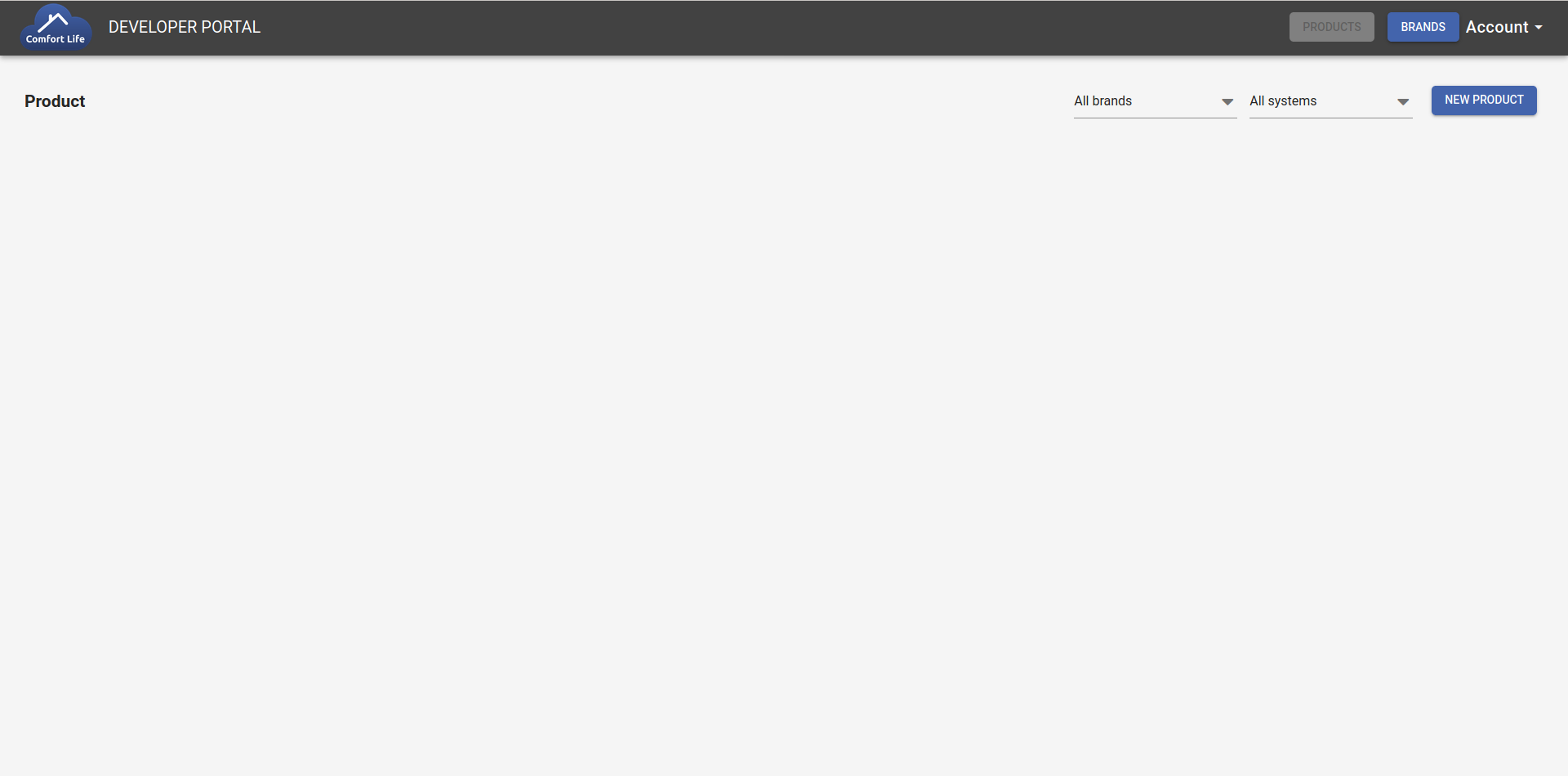
Click on NEW PRODUCT on the top-right of the screen.
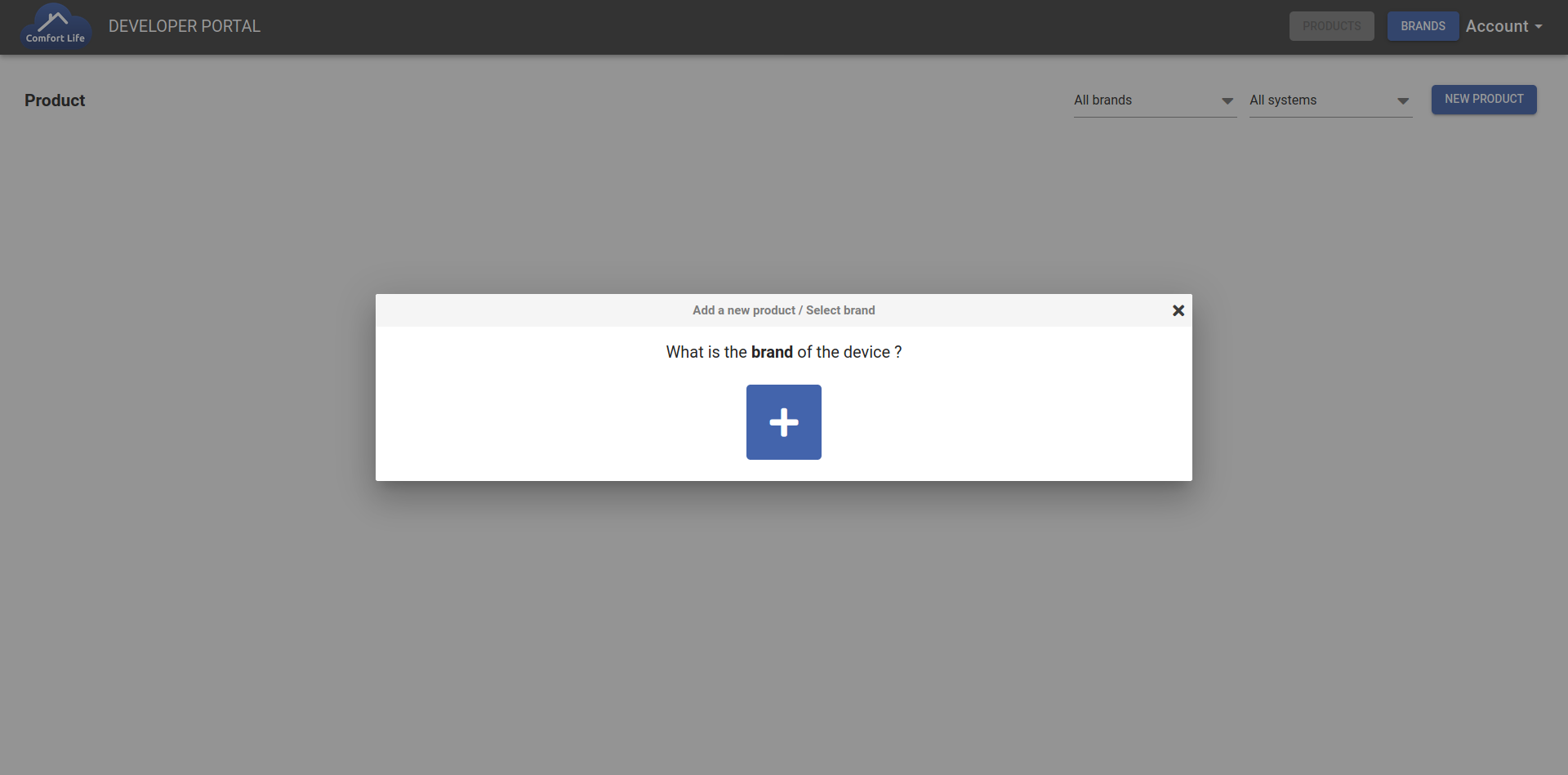
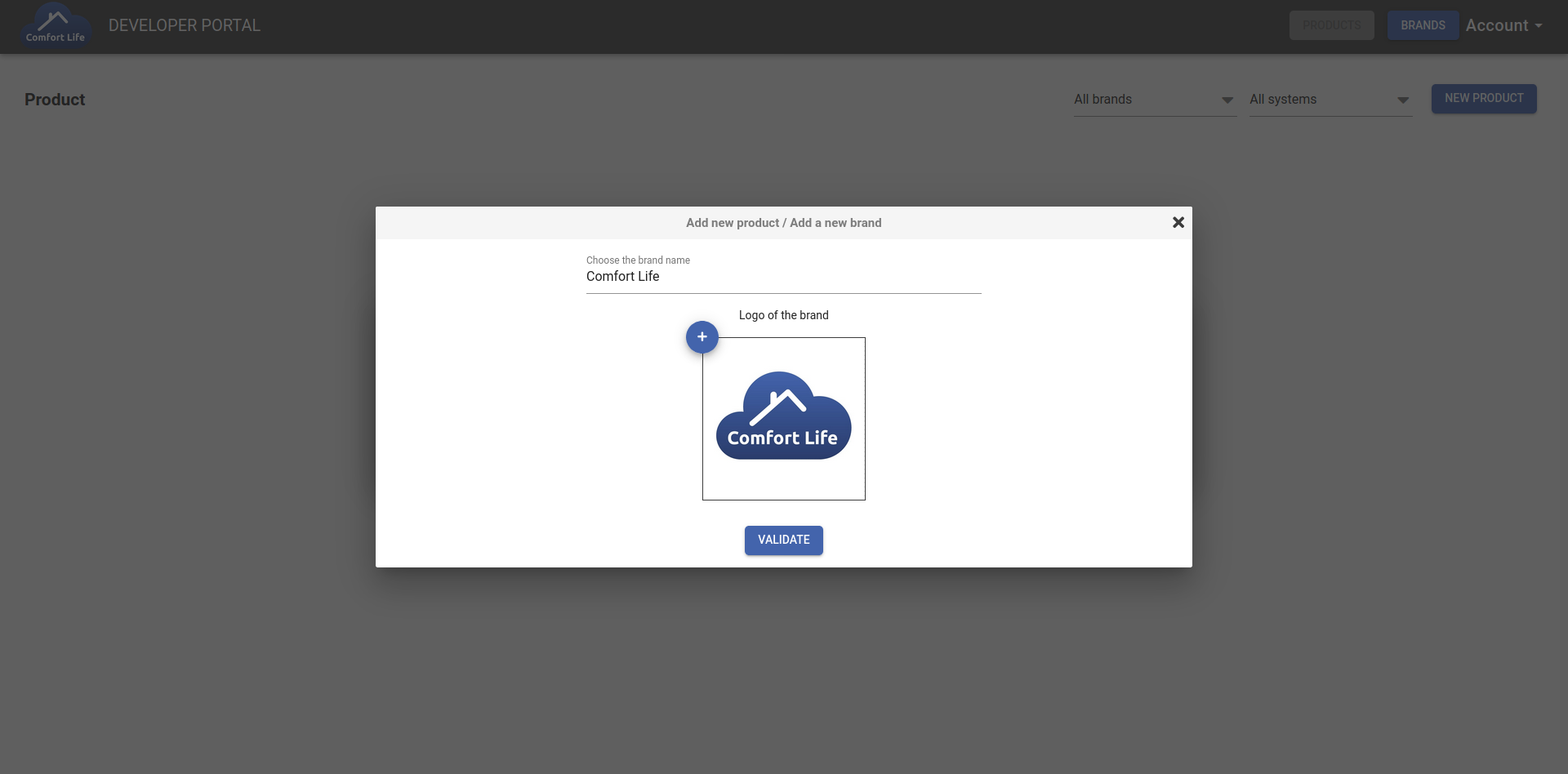
Create and put your logo for your new brand or use your existing one.
Warning
The name you write for the creation is the one that the users will see. The one that will be used for development will be given to you later.
Click on VALIDATE to go to the next step.
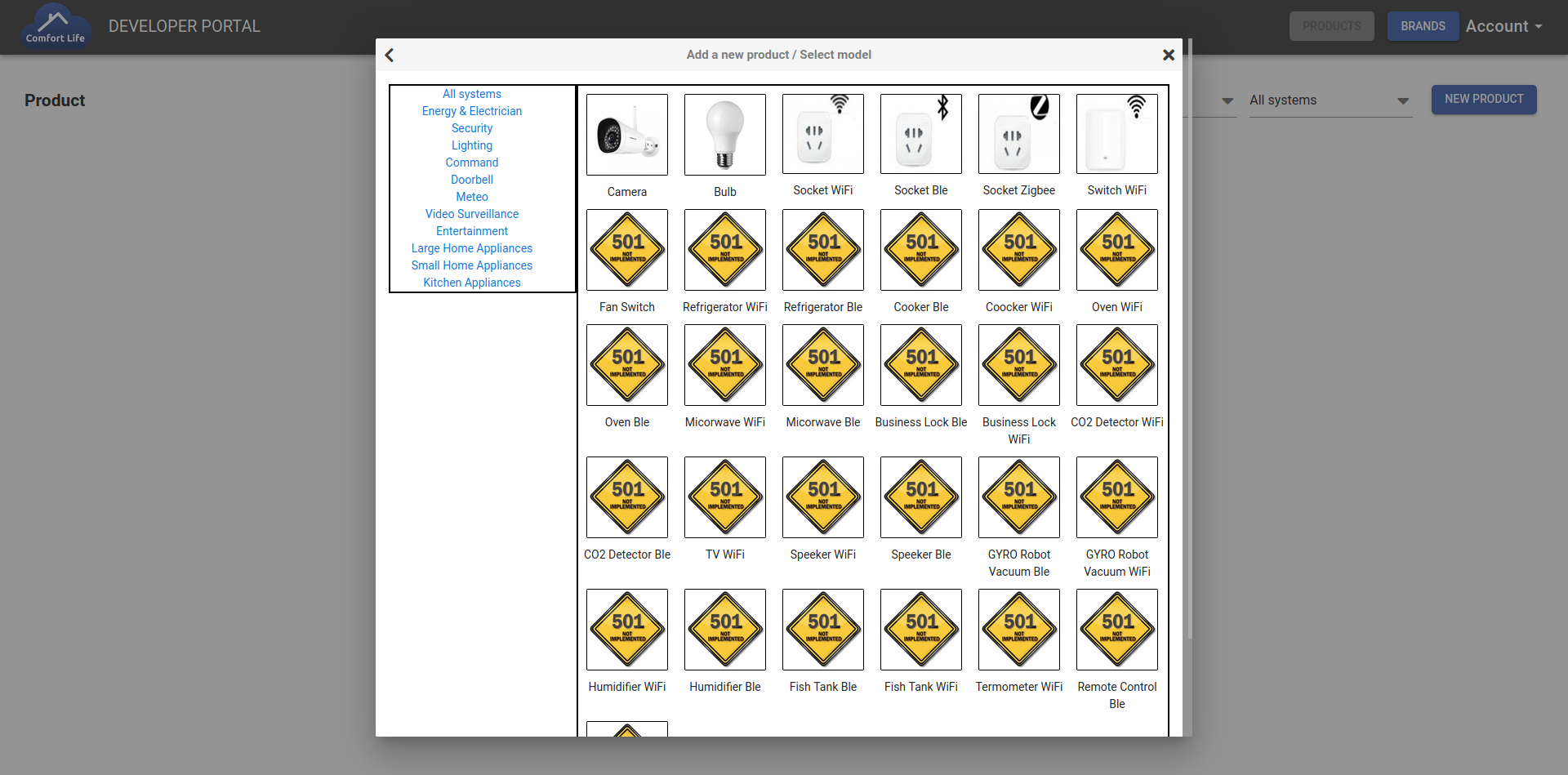
Next, select the Family Type for your new product.
Note
Each Family Type with a ‘501’ image are not yet available but will be later.
Next, define your product name.
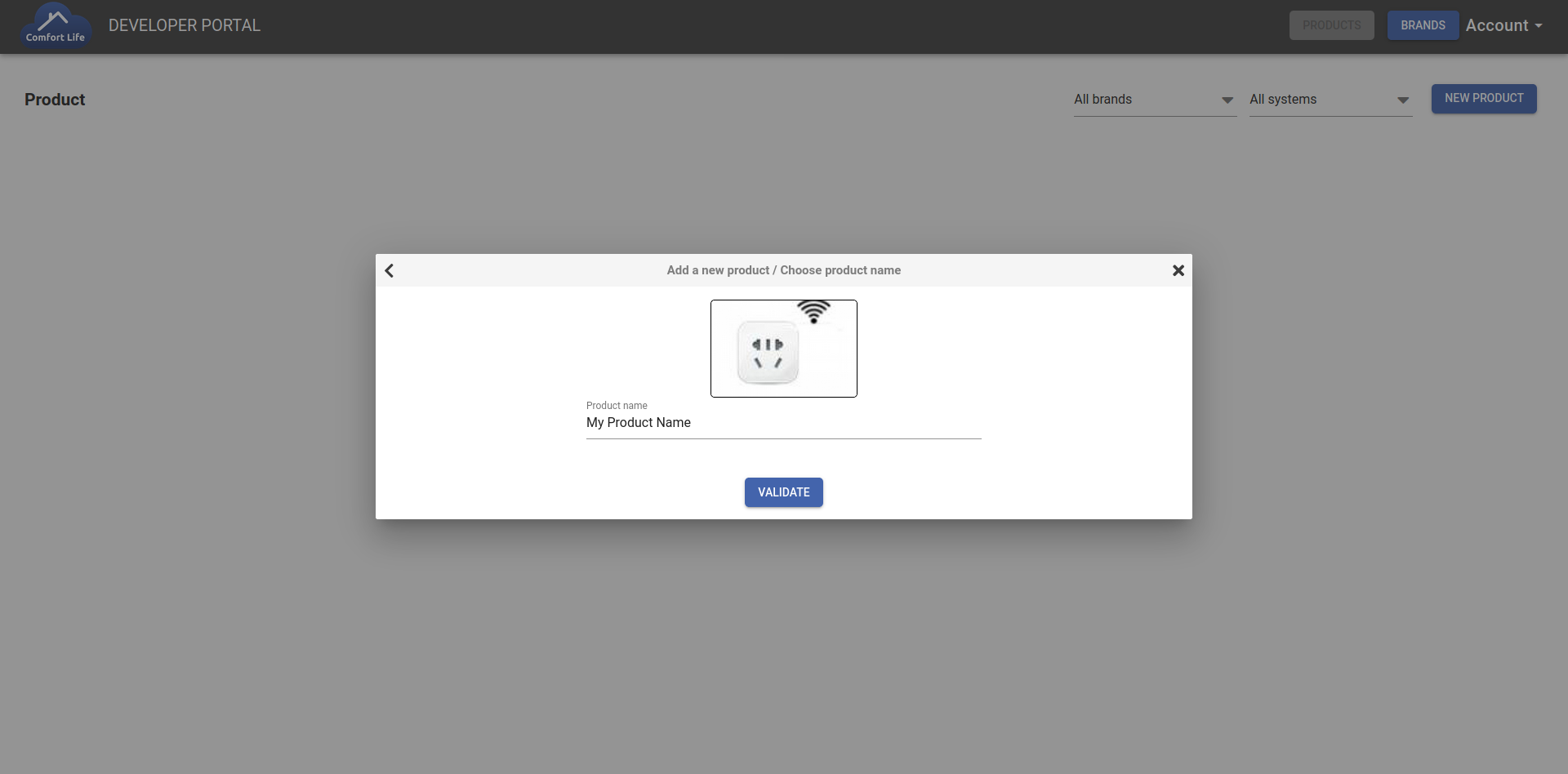
Warning
As for the brand, the name you write here is the one that the users will see. The one that will be used for development will be given to you later.
Next, choose the functions of your product. You need, at least, one function.
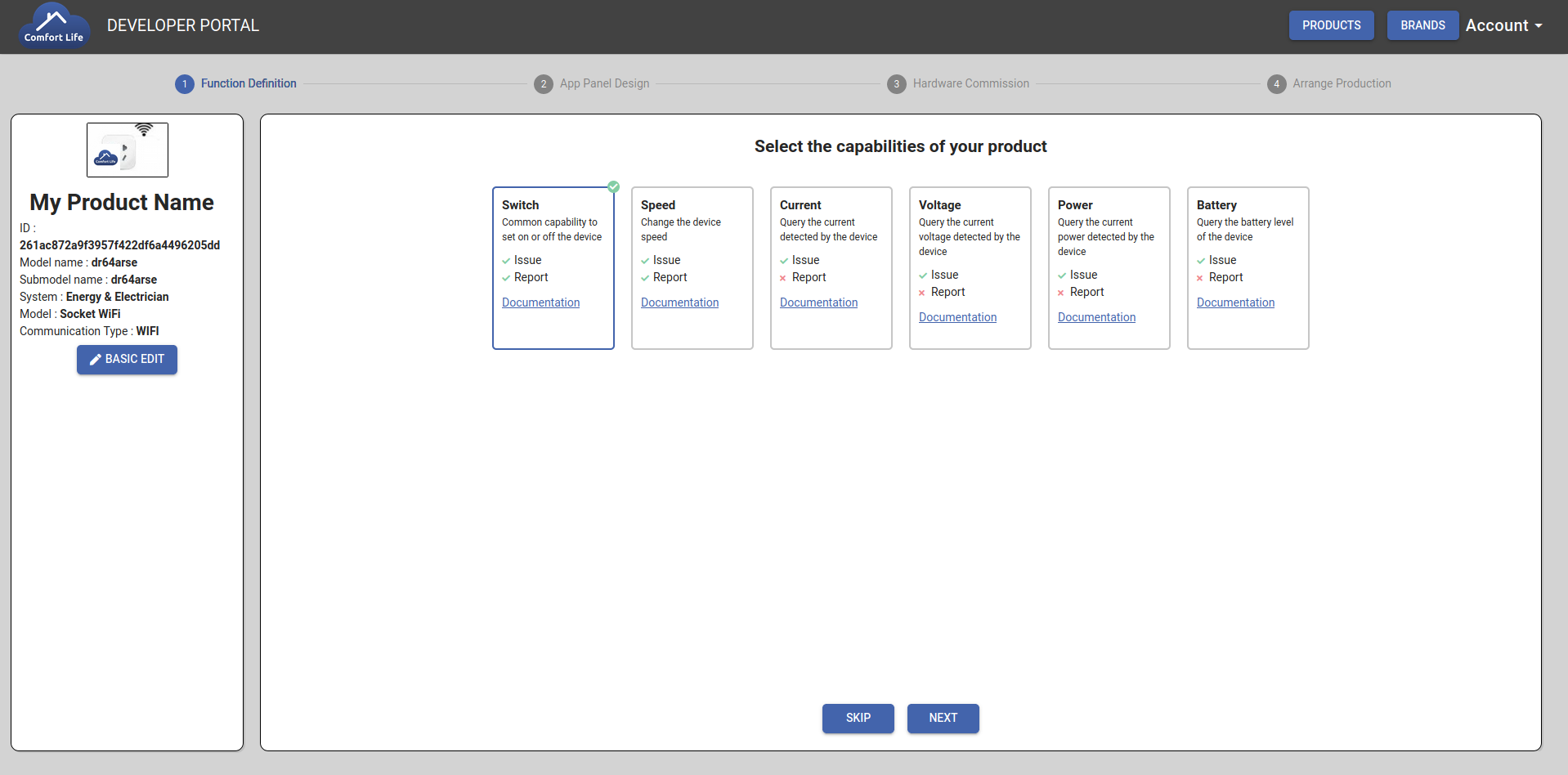
Note
You can also skip this step. This will not affect the Firmware or the SDK generated later but only the functionnality in the ComfortLife Application.
Next step is the selection of the widget design and the popup design for the ComfortLife application.
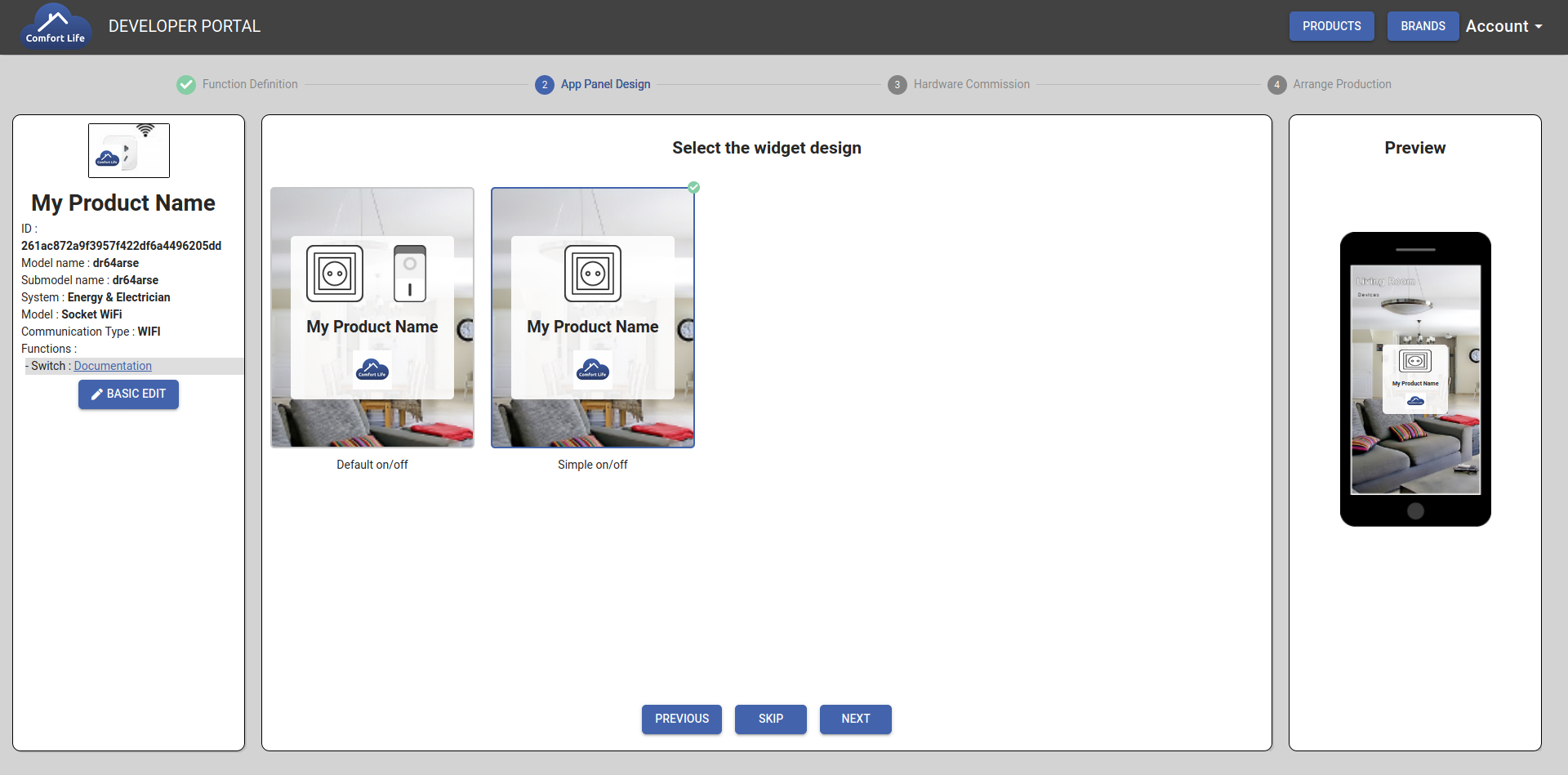
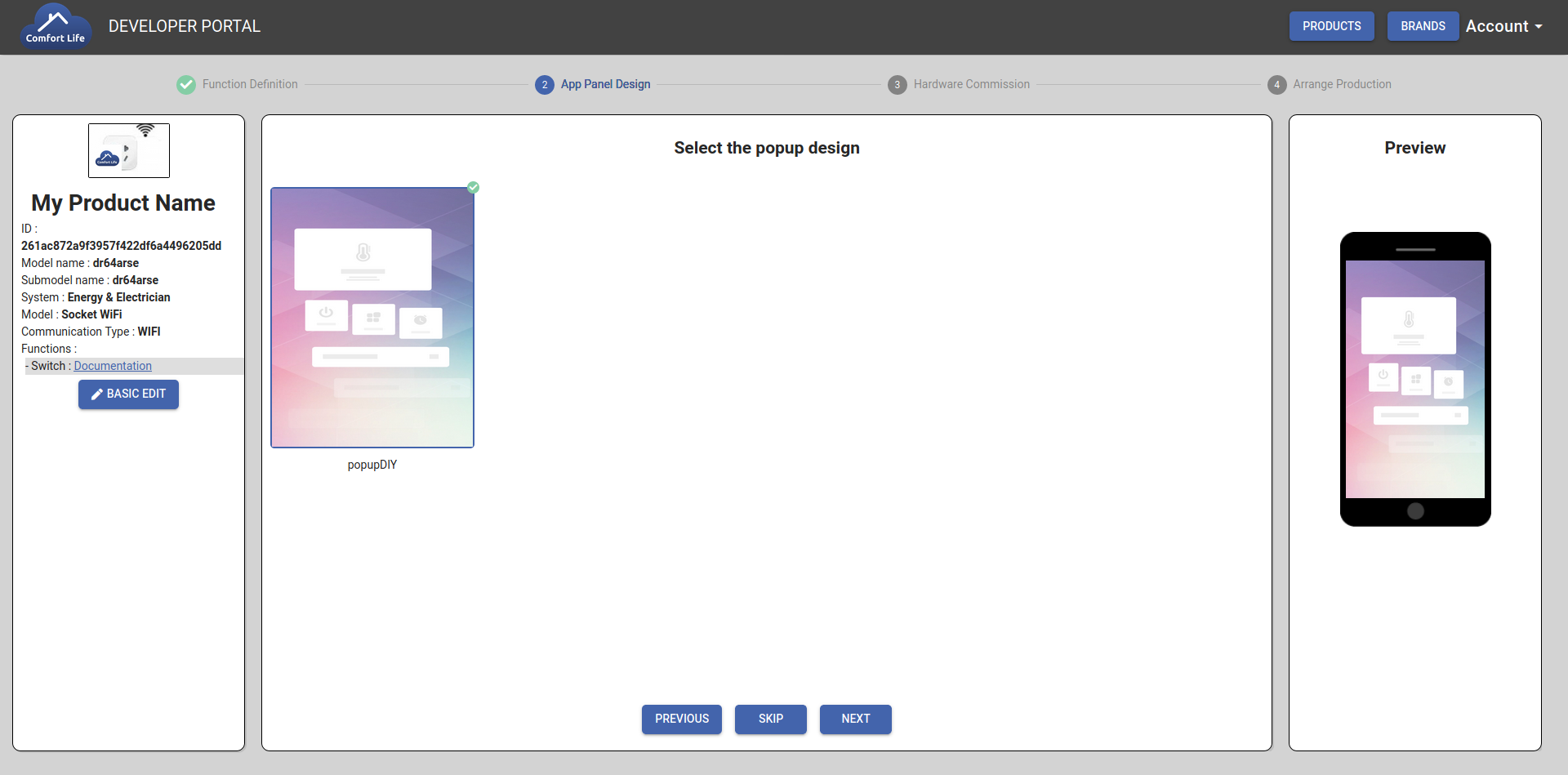
Select your preferred choice and go to the next step.
Note
You can skip this step too. This will not affect the Firmware or the SDK generated later but only the functionnality in the ComfortLife Application.
Next, this step is the most important.
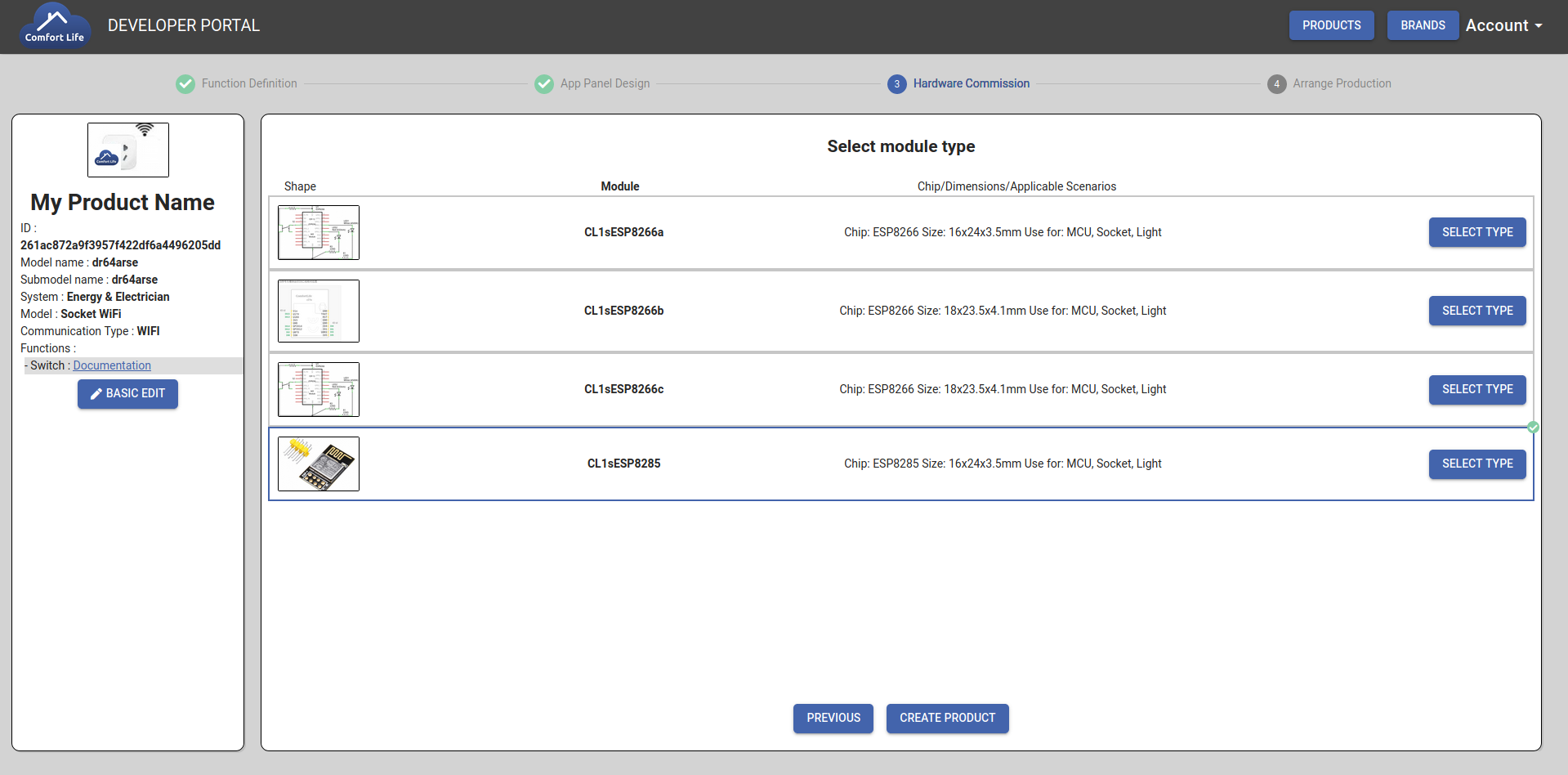
If you don’t have a module, select the one that suits you best.
Otherwise, select one with the same chip as yours.
Warning
Consult the overview on the left side of the screen to be sure of your choices. The next step is the creation of your product on our servers and it will not be possible to come back to make a change !
Click on CREATE PRODUCT.
Next, there is the definitive page for your product.
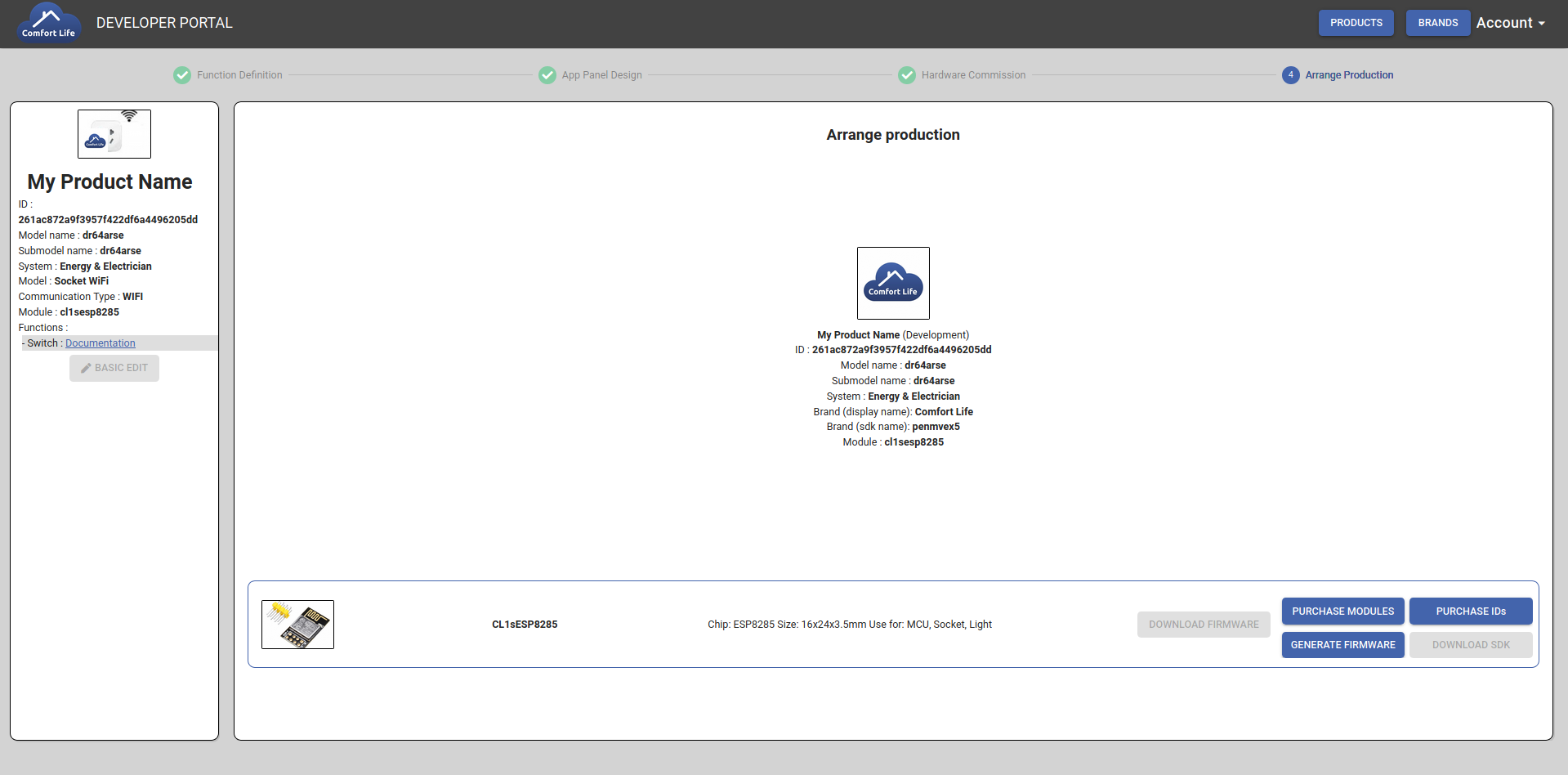
You can here purchase IDs and modules, generate/regenerate and download your firmware, and download our SDK.
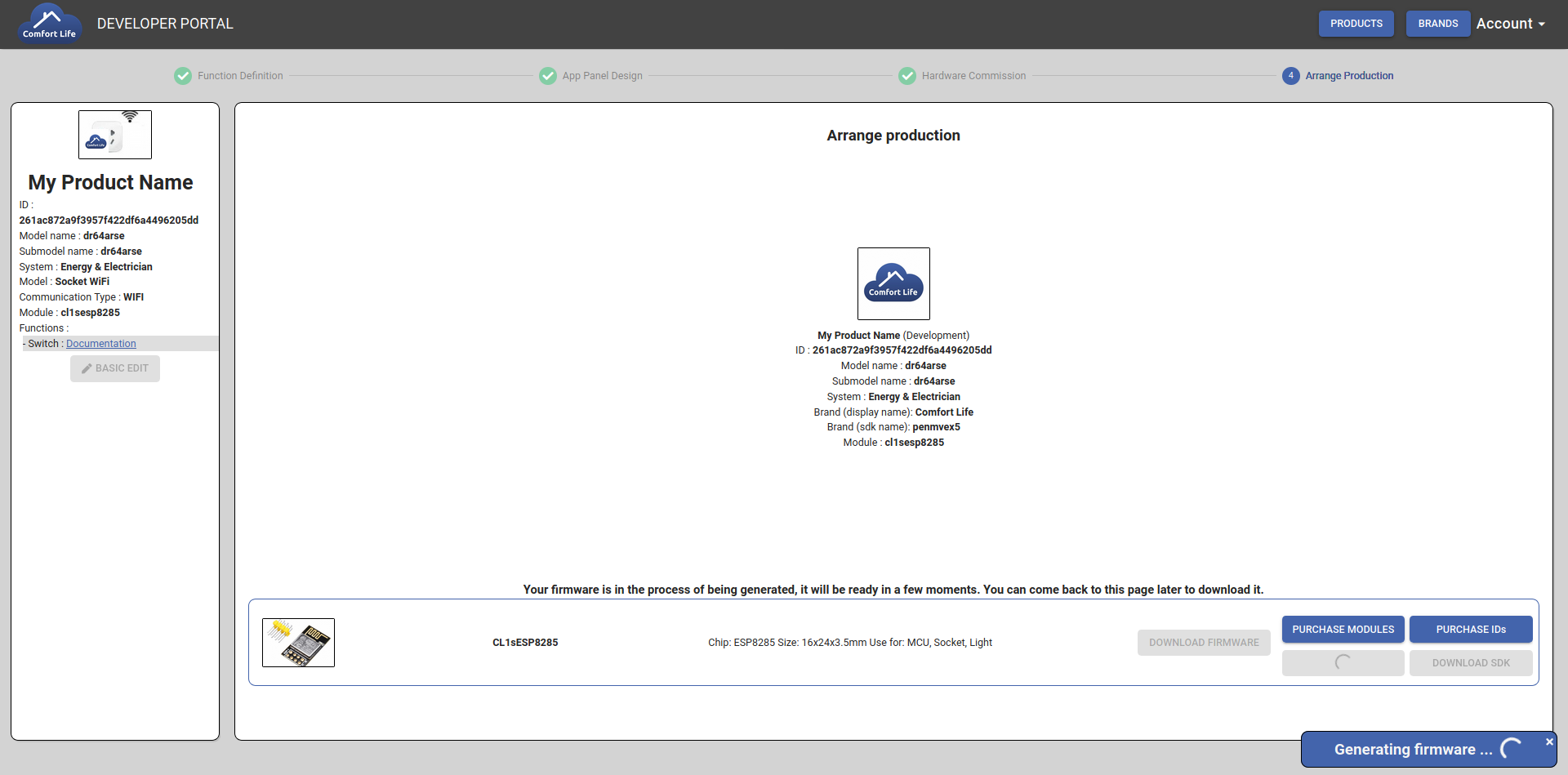
The first step generates the firmware for you. It is custom-made and may take a few moments. You can come back on this page later in order to download your firmware when it is ready or wait for it.
Note
(You will see a notification telling you that the firmware is being generated, if not, try to generate it again).
When it is ready, the download button will no longer be disabled and you can download your firmware.
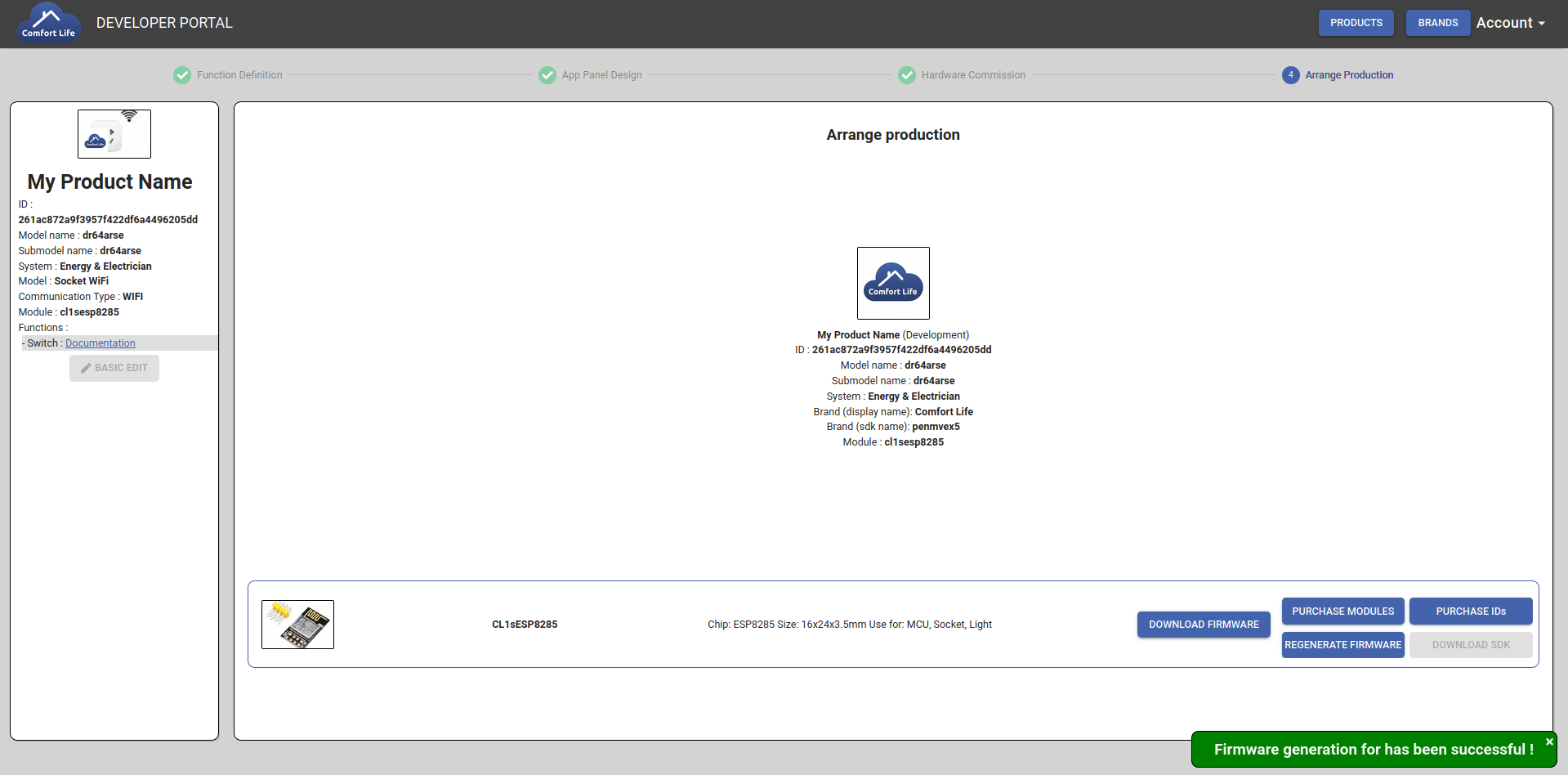
After clicking on DOWNLOAD FIRMWARE, check it in the download area of your browser.